OCI-Managed Certificate Bundles in Helidon
OCI-Managed Certificate Bundles in Helidon
Serve TLS from OCI Certificates and adopt renewed certificate/key pairs without restarting Helidon.
AI disclosure: This article was generated with OpenAI Codex. The tutorial commands and results were reviewed and verified by the author.
TLS certificate renewal sounds simple until the certificate and its private key are managed as two independent resources. A new certificate is useful only when the server also receives its matching key, and both must become active as one identity.
The Helidon OCI TLS Certificates extension
supports a certificate-bundle mode. It downloads the current leaf certificate, chain, private key, and optional
passphrase from one OCI-managed bundle. When OCI Certificates renews the certificate, Helidon detects the new current
version and reloads the complete identity without restarting the application.
This tutorial creates an OCI-managed certificate for localhost, starts a Helidon SE HTTPS server, validates its
certificate, renews it in OCI, and proves that new TLS handshakes receive the renewed certificate.
- What certificate-bundle mode changes
- Prerequisites
- Create the CA and managed certificate
- Grant access to the bundles
- Add the TLS manager to a Helidon application
- Configure the HTTPS socket
- Start and verify HTTPS
- Renew and reload the certificate
- How refresh behaves
- Security and operational notes
- Conclusion
What certificate-bundle mode changes
The OCI TLS manager offers two private-key sources:
| Mode | Certificate and key source | Reload default | Use it when |
|---|---|---|---|
vault |
Public certificate bundle from OCI Certificates plus a separately exported software-protected Vault key | Every poll | You already manage an external key and CSR workflow |
certificate-bundle |
Leaf certificate, chain, and matching private key from one OCI Certificates bundle | Only when the current version changes | OCI stores an issued or imported private-key identity as one bundle |
Existing configurations stay on vault when private-key-source is absent. Selecting bundle mode is explicit:
private-key-source: certificate-bundle
This tutorial uses a certificate of type Issued by internal CA because OCI stores its private key and can renew it
automatically. The Helidon mode itself requires a resource that returns CERTIFICATE_CONTENT_WITH_PRIVATE_KEY; a
public-only bundle is rejected. Imported and externally managed certificates are not eligible for OCI automatic
renewal.
Helidon requests the CURRENT bundle as CERTIFICATE_CONTENT_WITH_PRIVATE_KEY, decodes RSA or EC PKCS#8 key
material, and proves that the key matches the leaf certificate before installing it. No key-ocid, key-password, or
Vault endpoint belongs in this configuration; mixing those options with certificate-bundle fails fast.
Prerequisites
To follow this tutorial, you need:
- JDK 26 and Maven 3.9 or newer (this walkthrough was tested with Maven 3.9.15);
- an OCI tenancy and a compartment for disposable test resources;
- an OCI SDK authentication method that Helidon can use;
- OCI CLI, OpenSSL, and curl for the verification commands; and
- permission to create or reuse a Vault key, a Certificate Authority, and an internally managed certificate.
The application below uses the DEFAULT profile from ~/.oci/config; its region must match the region containing the
certificate resources. Helidon also supports instance principals, resource principals, OKE workload identity, session
tokens, and direct configuration. See
OCI Authentication in Helidon for those
alternatives.
Use disposable resources while following the tutorial. The server binds only to 127.0.0.1, but its leaf private key
is still retrieved into the JVM.
Create the CA and managed certificate
OCI Certificates needs a hardware-protected asymmetric Vault key for an OCI-created CA. Before creating the CA, make sure the service and the human operator have the required IAM access. If the tenancy has not already authorized the Certificates service to use Vault keys, create a dynamic group with this matching rule:
resource.type='certificateauthority'
Then grant that dynamic group access to the CA signing key:
Allow dynamic-group <ca-dynamic-group> to use keys in compartment <key-compartment-name>
The human operator separately needs permission to manage the certificate-authority family, read keys, use
key-delegate, and read Vaults. Object Storage permissions are needed only when CA revocation publishing is enabled.
See Certificate Authorities
for the complete setup.
Then, in the OCI Console:
- Open Identity & Security > Vault and create or select a Vault.
- Create an HSM-protected RSA 2048-bit asymmetric key for CA signing.
- Open Identity & Security > Certificates > Certificate Authorities and create a Root certificate authority.
- Give it a test common name, select the Vault key, choose
SHA256_WITH_RSA, and leave Not Valid Before empty so the CA is valid immediately. - Choose an expiry later than every leaf certificate version you plan to issue, create the CA, and wait for state Active.
- Copy the CA OCID.
The exact Console fields and corresponding CLI operation are documented in Creating a Certificate Authority.
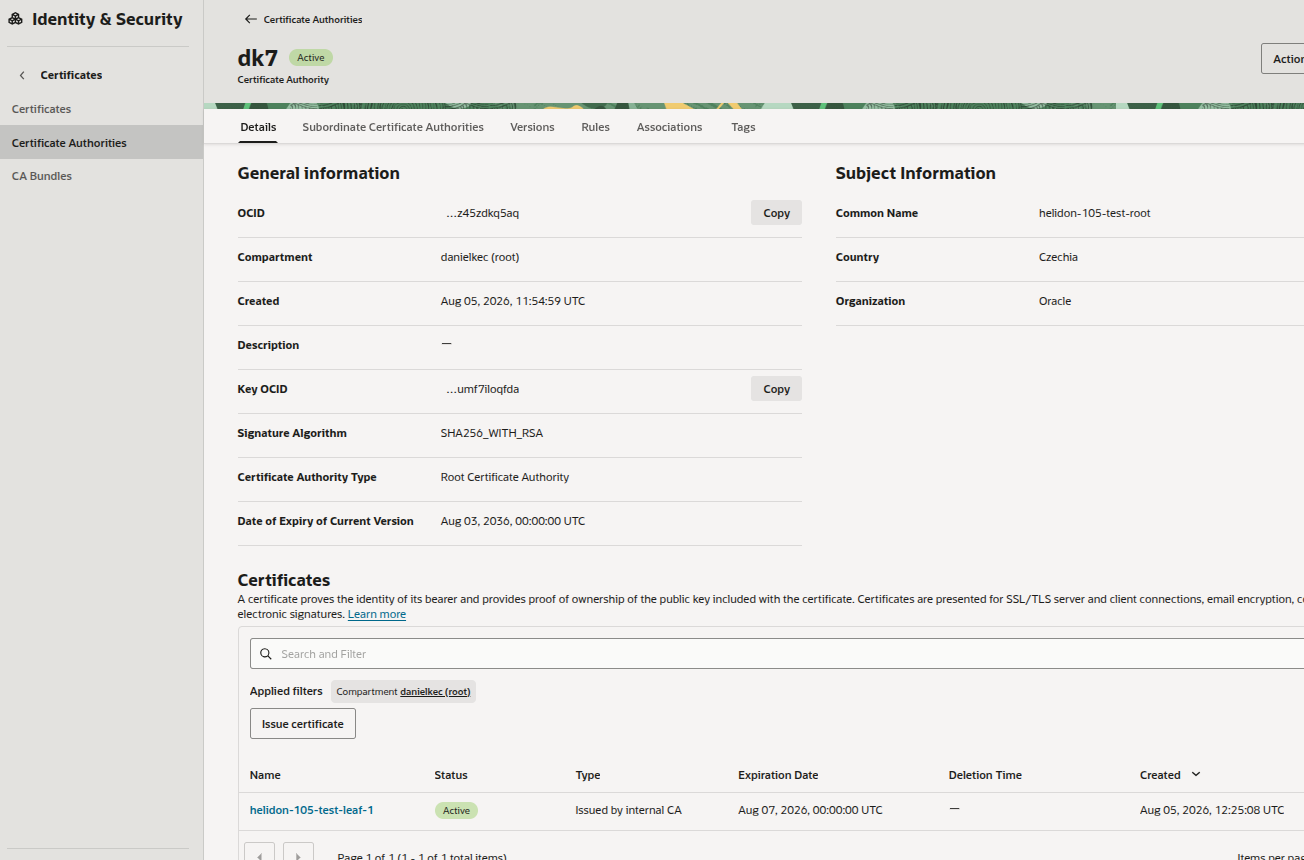
The test CA is active, uses a Vault key, and has one certificate issued from it.
Now create the leaf certificate:
- Open Identity & Security > Certificates > Certificates and select Create certificate.
- Select Issued by internal CA. Do not select the externally managed variant and do not import a certificate.
- Set the common name to
localhost. - Add the DNS subject alternative name
localhostand IP subject alternative name127.0.0.1. - Select the TLS Server profile and the CA created above.
- Select
RSA2048, leave Not Valid Before empty for immediate use, and choose an expiry before the CA expiry. - Configure a suitable renewal rule, then create the certificate.
- Wait for state Active and copy the certificate OCID.
OCI also supports EC keys. RSA keeps this first test simple; the implementation tests RSA and P-256 EC PKCS#8 bundles. OCI documents the returned key generically as PEM, so confirm the live EC encoding in your tenancy before standardizing on it. See Creating a Certificate for the complete OCI workflow.
Grant access to the bundles
The runtime needs to read two resources:
- the leaf bundle, including its private key; and
- the public CA bundle used as the trust anchor.
For local development with a user from an IAM group, use narrowly scoped policies like these:
Allow group <runtime-group> to read leaf-certificate-bundles in compartment <compartment-name>
  where all {
    target.leaf-certificate.id = '<certificate-ocid>',
    target.leaf-certificate.bundle-type = 'CERTIFICATE_CONTENT_WITH_PRIVATE_KEY'
  }

Allow group <runtime-group> to read certificate-authority-bundles in compartment <compartment-name>
  where target.certificate-authority.id = '<ca-ocid>'
Use dynamic-group when the runtime principal belongs to an OCI dynamic group, such as an instance principal. OKE
workload identity instead uses an any-user policy with cluster, namespace, and service-account conditions. The
private-bundle condition is important: ordinary public-bundle access does not authorize
CERTIFICATE_CONTENT_WITH_PRIVATE_KEY. See the OCI
Certificates policy reference
for the complete permission and condition model.
You can verify access without printing the private key:
export OCI_CERT_OCID='ocid1.certificate...'

oci certificates certificate-bundle get \
  --certificate-id "$OCI_CERT_OCID" \
  --stage CURRENT \
  --bundle-type CERTIFICATE_CONTENT_WITH_PRIVATE_KEY \
  --query 'data.{version:"version-number",certificatePresent:length(not_null("certificate-pem", `""`)) > `0`,privateKeyPresent:length(not_null("private-key-pem", `""`)) > `0`}' \
  --output table
Both presence fields must be True. Do not add --debug, remove the projection, or redirect an unfiltered private
bundle to a file. OCI documents private-bundle retrieval in
Viewing a Certificate Version Bundle.
Add the TLS manager to a Helidon application
The application uses the released Helidon SE parent and OCI Extensions BOM. Their versions are declared separately,
even when both are 27.0.0:
<parent>
    <groupId>io.helidon.applications</groupId>
    <artifactId>helidon-se</artifactId>
    <version>27.0.0</version>
    <relativePath/>
</parent>

<properties>
    <mainClass>io.helidon.examples.ocimanagedtls.Main</mainClass>
    <helidon.extensions.oci.version>27.0.0</helidon.extensions.oci.version>
    <oci.sdk.version>3.78.1</oci.sdk.version>
</properties>

<dependencyManagement>
    <dependencies>
        <dependency>
            <groupId>io.helidon.extensions.oci.v3</groupId>
            <artifactId>helidon-extensions-oci-v3-bom</artifactId>
            <version>${helidon.extensions.oci.version}</version>
            <type>pom</type>
            <scope>import</scope>
        </dependency>
        <dependency>
            <groupId>com.oracle.oci.sdk</groupId>
            <artifactId>oci-java-sdk-bom</artifactId>
            <version>${oci.sdk.version}</version>
            <type>pom</type>
            <scope>import</scope>
        </dependency>
    </dependencies>
</dependencyManagement>

<dependencies>
    <dependency>
        <groupId>io.helidon.webserver</groupId>
        <artifactId>helidon-webserver</artifactId>
    </dependency>
    <dependency>
        <groupId>io.helidon.config</groupId>
        <artifactId>helidon-config-yaml</artifactId>
    </dependency>
    <dependency>
        <groupId>io.helidon.service</groupId>
        <artifactId>helidon-service-registry</artifactId>
    </dependency>
    <dependency>
        <groupId>io.helidon.extensions.oci.v3</groupId>
        <artifactId>helidon-extensions-oci-v3-tls-certificates</artifactId>
    </dependency>
    <dependency>
        <groupId>com.oracle.oci.sdk</groupId>
        <artifactId>oci-java-sdk-common-httpclient-jersey3</artifactId>
        <scope>runtime</scope>
    </dependency>
    <dependency>
        <groupId>io.helidon.logging</groupId>
        <artifactId>helidon-logging-jul</artifactId>
        <scope>runtime</scope>
    </dependency>
</dependencies>

<build>
    <finalName>oci-managed-cert-tls-test</finalName>
    <plugins>
        <plugin>
            <groupId>org.apache.maven.plugins</groupId>
            <artifactId>maven-dependency-plugin</artifactId>
            <executions>
                <execution>
                    <id>copy-libs</id>
                </execution>
            </executions>
        </plugin>
    </plugins>
</build>
The OCI HTTP client is a runtime choice, so add one explicitly. The example uses Jersey 3.
The server starts Service Registry before creating the configured web server. This makes the OCI authentication provider and TLS manager available:
package io.helidon.examples.ocimanagedtls;

import io.helidon.config.Config;
import io.helidon.logging.common.LogConfig;
import io.helidon.service.registry.ServiceRegistryConfig;
import io.helidon.service.registry.ServiceRegistryManager;
import io.helidon.webserver.WebServer;
import io.helidon.webserver.http.HttpRouting;

public final class Main {
    private Main() {
    }

    public static void main(String[] args) {
        LogConfig.configureRuntime();
        ServiceRegistryManager registryManager =
                ServiceRegistryManager.start(ServiceRegistryConfig.builder()
                                                     .maxRunLevel(0)
                                                     .build());

        WebServer server;
        try {
            server = WebServer.builder()
                    .config(Config.create().get("server"))
                    .routing("secured", Main::routing)
                    .build()
                    .start();
        } catch (RuntimeException | Error e) {
            registryManager.shutdown();
            throw e;
        }

        System.out.println("OCI managed-certificate TLS test server started");
        System.out.println("HTTPS endpoint: https://localhost:"
                                   + server.port("secured") + "/test");
    }

    private static void routing(HttpRouting.Builder routing) {
        routing.get("/test", (request, response) ->
                response.send("OCI managed-certificate TLS test OK\n"));
    }
}
maxRunLevel(0) leaves declarative application startup disabled because this example starts one imperative server
explicitly. OCI services are still resolved lazily from the registry.
Configure the HTTPS socket
Put the server configuration in src/main/resources/application.yaml:
server:
  host: 127.0.0.1
  port: 0
  sockets:
    - name: secured
      host: 127.0.0.1
      port: 8080
      tls:
        manager:
          oci-certificates-tls-manager:
            schedule: "0/10 * * * * ? *"
            private-key-source: certificate-bundle
            ca-ocid: ${OCI_CA_OCID}
            cert-ocid: ${OCI_CERT_OCID}
The unnamed socket binds an ephemeral loopback port with no routes. Only the named secured socket serves /test as
HTTPS. A ten-second poll is convenient for the tutorial; use a less aggressive schedule in production.
Notice what is not configured: there is no key-ocid, key-password, vault-crypto-endpoint, or
vault-management-endpoint. The private key and its OCI-provided passphrase, when present, come from the same bundle as
the leaf certificate.
The generated 27.0.0 configuration metadata cannot express mode-conditional requirements, so an IDE might still mark legacy Vault options as required. The bundle configuration above is valid at runtime without them.
For local authentication, put this in src/main/resources/oci-config.yaml:
helidon.oci:
  authentication-method: config-file
  authentication:
    config-file:
      profile: DEFAULT
Finally, enable the TLS manager’s fine-grained refresh message in src/main/resources/logging.properties:
handlers=java.util.logging.ConsoleHandler
.level=INFO
java.util.logging.ConsoleHandler.level=ALL
java.util.logging.ConsoleHandler.formatter=io.helidon.logging.jul.HelidonFormatter
io.helidon.extensions.oci.v3.tls.certificates.level=FINE
Start and verify HTTPS
Export the two resource identifiers, build the application, and start it:
export OCI_CA_OCID='ocid1.certificateauthority...'
export OCI_CERT_OCID='ocid1.certificate...'

mvn clean package
java -jar target/oci-managed-cert-tls-test.jar
Initial startup is synchronous. The server starts only after Helidon has downloaded the private leaf bundle and CA bundle, verified that the key matches the certificate, and built the TLS context:
OCI managed-certificate TLS test server started
HTTPS endpoint: https://localhost:8080/test
Download only the public CA certificate for the client-side check:
mkdir -p target
oci certificates certificate-authority-bundle get \
  --certificate-authority-id "$OCI_CA_OCID" \
  --stage CURRENT \
  --query 'data."certificate-pem"' \
  --raw-output > target/oci-ca.pem
Now make a fully verified request. --resolve makes both the TLS server name and HTTP host localhost while connecting
to the loopback address:
curl --fail --show-error \
  --cacert target/oci-ca.pem \
  --resolve localhost:8080:127.0.0.1 \
  https://localhost:8080/test
Expected response:
OCI managed-certificate TLS test OK
Do not replace the CA check with curl -k; that would stop testing certificate trust and hostname verification.
You can also record the served serial number and SHA-256 fingerprint:
openssl s_client \
  -connect 127.0.0.1:8080 \
  -servername localhost \
  </dev/null 2>/dev/null \
  | openssl x509 -noout -serial -dates -fingerprint -sha256 \
  | tee target/certificate-before.txt
For the browser check below, I temporarily imported the public test CA as a trusted authority. Remove the disposable CA from the browser trust store after the test; never import the leaf private key.
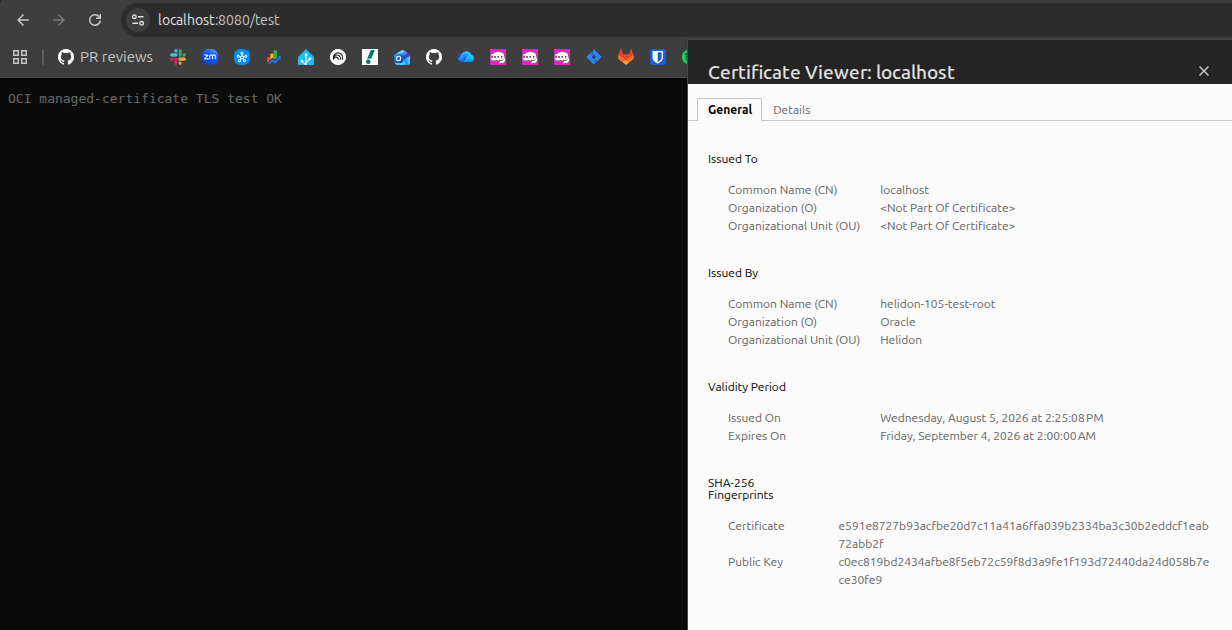
Chrome receives the response from localhost and validates the leaf as issued by the test CA.
Renew and reload the certificate
Automatic renewal might take days to reach its configured window, so a manual renewal is the quickest deterministic test of current-version adoption:
- Leave the Helidon process running.
- In the OCI Console, open the internally managed leaf certificate.
- Select Renew certificate from the Actions menu.
- Leave Not Valid Before empty so the new version becomes valid immediately, choose an expiry before the CA expires, and renew.
- Watch the Versions tab until the new version becomes Current.
In this test, while renewal was completing, the Versions page briefly showed version 2 as latest while version 1
remained Current:
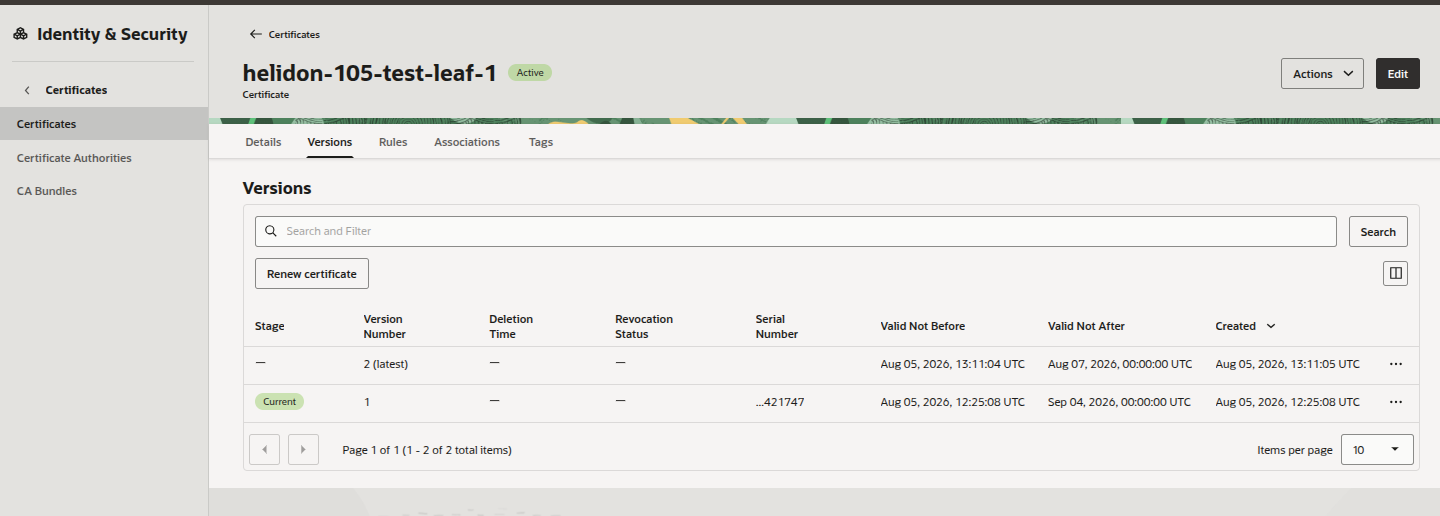
Observed during this test: version 2 is latest, but version 1 is still Current. Helidon therefore continues serving
version 1 until OCI reports version 2 as Current.
On the first scheduled poll after OCI promotes the new version, Helidon downloads and validates the complete new certificate/key pair, rebuilds TLS, and logs:
FINE: Certificates were downloaded and dynamically updated

The application adopts the renewed TLS identity without a JVM restart.
Run the HTTPS request again, then capture the certificate:
curl --fail --show-error \
  --cacert target/oci-ca.pem \
  --resolve localhost:8080:127.0.0.1 \
  https://localhost:8080/test

openssl s_client \
  -connect 127.0.0.1:8080 \
  -servername localhost \
  </dev/null 2>/dev/null \
  | openssl x509 -noout -serial -dates -fingerprint -sha256 \
  | tee target/certificate-after.txt
The request must still pass, while the serial number and certificate fingerprint must differ from the values in
certificate-before.txt. Existing TLS connections are not renegotiated; new handshakes receive the renewed identity.
This tutorial manually triggers renewal; it does not test OCI’s time-based automatic-renewal scheduler. When automatic
renewal advances the certificate’s CURRENT version, Helidon observes it through the same polling path. Configure the
certificate’s renewal interval and advance-renewal period for the production lifecycle you need; OCI explains those
controls in
Editing Certificate Rules.
How refresh behaves
In certificate-bundle mode, leaving always-reload absent is intentional. Its effective default is false:
- Each scheduled poll fetches the
CURRENTprivate certificate bundle, parses it, validates the key/certificate match, and reads its version. - If the version is unchanged, Helidon skips CA retrieval and TLS rebuilding.
- If the version changed, Helidon downloads the CA, builds new key and trust managers, and reloads them as one operation.
- Only a successful reload records the new version.
If download, parsing, key matching, or TLS rebuilding fails during a scheduled refresh, the previous working identity remains active. The failed version is not recorded, so a later poll retries it. Initial startup is deliberately stricter: without a valid identity, the HTTPS server does not start.
You can override the mode default:
always-reload: true
That forces a TLS rebuild on every poll even when the version is unchanged. It is useful for diagnostics, but version-gated reload is the better normal setting. Scheduled executions and configuration-triggered reloads are serialized, so overlapping refreshes cannot race one another.
Version-gating follows the leaf certificate version. If you rotate only the CA while the leaf version remains unchanged,
the default does not notice that CA-only change. Renew the leaf as part of the CA rotation or temporarily use
always-reload: true so the CA bundle is fetched again.
Security and operational notes
- The leaf key exists in JVM memory. This mode is not remote signing and does not make the server leaf key non-exportable. Protect heap dumps, core dumps, diagnostics, and process access accordingly.
- The CA key can stay HSM-protected. OCI uses the CA’s Vault key to issue certificates; Helidon downloads only the public CA bundle and the managed leaf identity.
- Keep bundle access narrow. Restrict both the certificate OCID and the private bundle type in IAM where practical.
- Never log bundle content. Avoid OCI CLI
--debug, raw response files, or application logging that might expose a private PEM or passphrase. - Treat refresh logs as resource metadata. Refresh warnings identify the certificate by OCID even though they never include its PEM or passphrase.
- Do not configure a password yourself. An optional bundle passphrase comes from OCI and is used only to decode the returned key.
- Retain old OCI versions deliberately. OCI does not automatically delete older certificate versions after renewal; manage them before service limits become a problem.
- Use a realistic production poll schedule. Ten seconds makes this tutorial quick, not economical. Choose a period that fits your renewal and recovery objectives; each poll still retrieves the private leaf bundle before comparing its version.
Conclusion
The important change is not merely that Helidon can download another private key format. The certificate, chain, and matching key now move together as one versioned OCI resource. That removes the separate Vault key/CSR synchronization problem and lets automatic renewal in OCI Certificates feed directly into a running Helidon server.
For the implementation history, see issue #105 and PR #106. OCI documents the surrounding lifecycle in Renewing a Certificate and Certificate Versions and Rotation States.